
🔎 Quick Navigation
1. Choosing the Light Spectrum and Intensity Level
1.1 Light Spectrum
1.2 Light Intensity
2.1 Calibration Intensity Level
3.1 Creating a New Calibration
3.2 Uploading and Measuring Calibration Cells
1. Choosing the Light Spectrum and Intensity Level
1.1 Light Spectrum
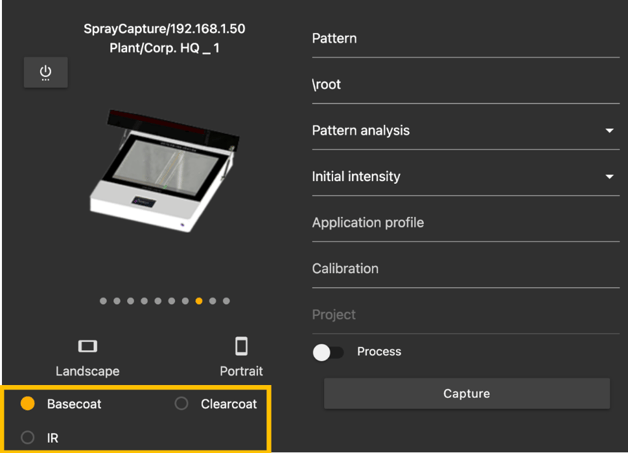
The Mk.2 unit has three light sources:
- Base coat: visible light used for most base coat paints.
- Clear coat: UV light is used for paints with little to no pigmentation, mainly clear coats.
- Infrared (IR): Infrared light is used for heavily pigmented paints with high light blocking capabilities, mainly primers or any paint which is not visible with the "base coat" setting of unit.
1.2 Light Intensity
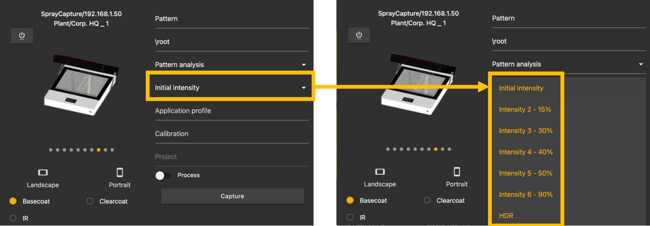
After we choose the right light source, we need to set the correct intensity.
There are 6 intensity levels for each light source:
- Initial
- Intensity 2
- Intensity 3
- Intensity 4
- Intensity 5
- Intensity 6
- HDR (Combination of Initial Intensity & Intensity 6)
Increasing the intensity improves penetration through the paint layer, making thicker coatings visible. However, higher intensities can reduce the visibility of thinner layers. Start with Initial Intensity and increase it step-by-step if required.
2. Calibration Foil Crop
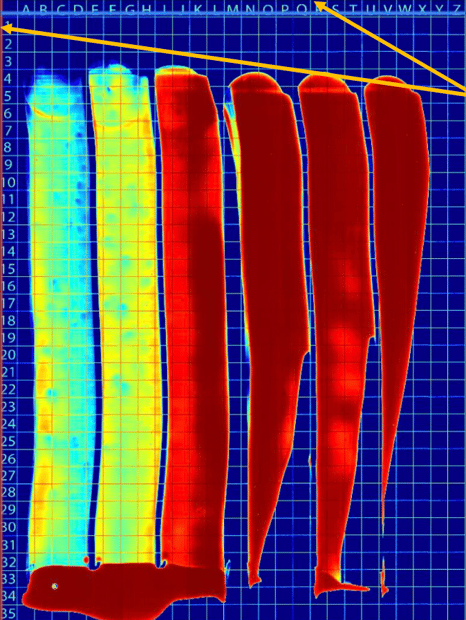
SprayVision uses calibration foils with printed markers to ensure correct cropping.
The cropped area should align precisely with the edges of the numbers on the left and the letters at the top for accurate cell position detection.
2.1 Calibration Intensity Level
For optimal calibration, measure at least 10% more paint thickness than the standard applied. Use a ferromagnetic probe to determine the correct thickness.
Adjust the light intensity until the measured thickness area is visible, ensuring an accurate calibration setup.
3. Creating a Calibration
3.1 Creating a New Calibration
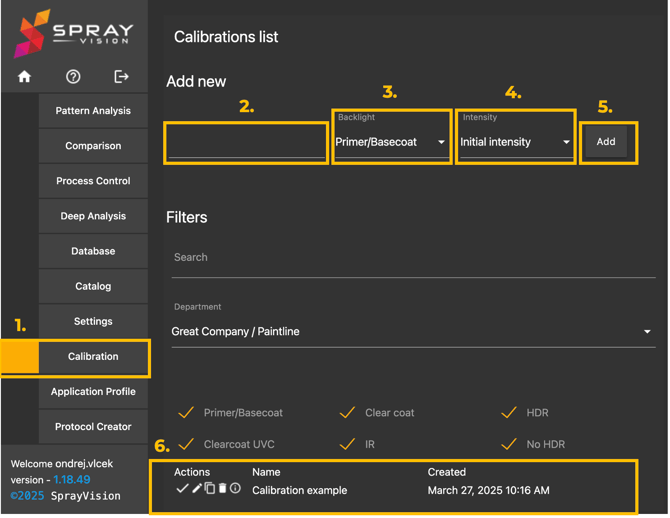
To create a calibration, please follow these steps:
- Open the "Calibration" module.
- Enter the calibration name.
- Select the light setting used to capture the calibration foil.
- Select the intensity setting used.
- Click "Add" to create the calibration.
- The calibration will appear in the list of available calibrations.
3.2 Uploading and Measuring Calibration Cells
After creating a new calibration, upload the calibration foil image from the database and enter all necessary information.
- Upload the calibration foil image from the database.
- (Optional) Upload the paint TDS for easy reference.
- Enter the reference paint thickness (+10% of the standard thickness).
- Measure and enter the raw calibration foil thickness (without paint) for accuracy.
- The software will automatically detect and highlight usable measurement cells (green squares) and generate a list for measurement.
- It is not necessary to measure all detected cells – typically, selecting 6 to 7 cells is sufficient for a successful calibration.
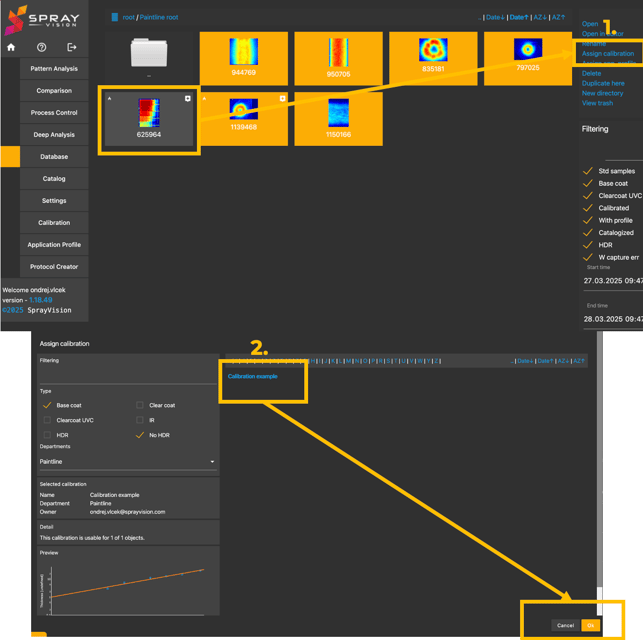
Once the calibration is assigned, open the calibration foil in the Pattern Analysis module.
 Use the "Examine Area" tool to measure selected areas inside the cells with:
- Low intensity (light blue)
- Medium intensity (yellow)
- High intensity (red)
Always perform the measurement inside the cell.
Including the grid line in the measurement may cause undesired increase in the average thickness value.
⚠️ IMPORTANT – Never measure the ink grid with either the app tools or your gauge. Measuring must be performed inside the cell (in its center if possible).
Physically measure the same chosen areas using a ferromagnetic coating thickness gauge.
Calculate the actual coating thickness by subtracting the reference (clean foil) value from the measured value.
Compare the average thickness values:
a) Measured by SprayCapture
b) Measured by the thickness gauge
If the difference is less than 1 micron, the calibration can be considered successfully verified.
If the difference exceeds 1 micron, it is necessary to verify the following:
- Accuracy of the thickness gauge readings
- Correct selection of calibration points
(The selected cell must have good homogeneity – no dust, no sudden drops in thickness, no intensity shifts. Only one color from the heatmap should be present inside.) - Consistency of intensity step coverage – within the used intensity range, thickness must be measured at least every 0.1 C or less.
If proper selection of valid points is not possible due to limited measurement availability, it is necessary to repaint or draw down a new calibration foil.
4. Troubleshooting
If you run into any issues with the calibration process, please try the following troubleshooting tips first:
- Define the desired thickness range – for example, 12 ± 4 µm.
- Identify reference cells with your measuring gauge:
→ one at 8 µm (minimum)
→ one at 16 µm (maximum)
- Adjust the backlight intensity:
Correct intensity is when both reference cells are visible under a maximum of 0.9 C.
The 16 µm cell may reach 0.9 C, but the 8 µm cell must remain significantly lower. - Use the init image to crop images at higher intensities (read more in ‘Calibration of high opacity paints’), especially if the grid ink disappears due to excessive light source power.
- Create the calibration within the defined and fully visible range. Do not assign more than one measurement to intensity 0.9 C and above.
- Verify the calibration consistency:
Check the gaps between measured points – distances should be similar.
The thickness assigned to intensity must remain in direct proportion (never assign the same thickness to multiple intensities and vice versa).
If you require any further clarification, encounter unexpected behavior, or would like assistance with specific parts of the workflow, please do not hesitate to contact our support team at helpdesk@sprayvision.com.
Our team is ready to assist you and ensure that your experience with SprayVision is as smooth and effective as possible.