
The main improvements include the ability to:
- Process multiple patterns at once
- Merge several patterns into a single image
- Calculate the average of multiple results
- Optimization of the module for improved stability and speed
These enhancements are designed to streamline your workflow and provide more flexibility when working with patterns.
Below you will find the steps on how to work with the updated Pattern Editor module.
🔎 Article Overview
1. How to Access the New Pattern Editor
2. Description of the "PATTERNS TAB" Layout
3. Description of the "ADJUSTMENTS TAB" Layout
4. How to Work with Multiple Patterns
1. How to Access the New Pattern Editor
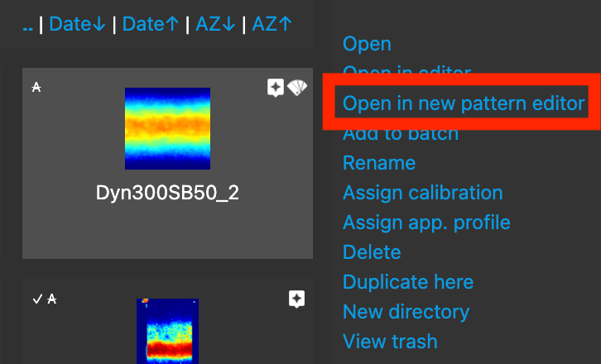
In the right vertical menu, there is a new option: "Open in new pattern editor".
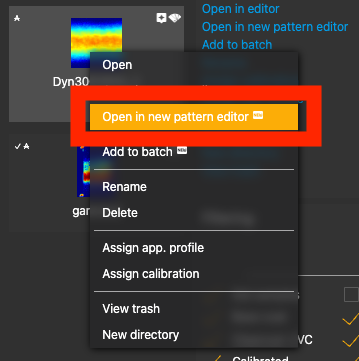
Use the mouse right button to open the context menu, where you will find the option "Open in new pattern editor".
2. Description of the "PATTERNS TAB" Layout
-
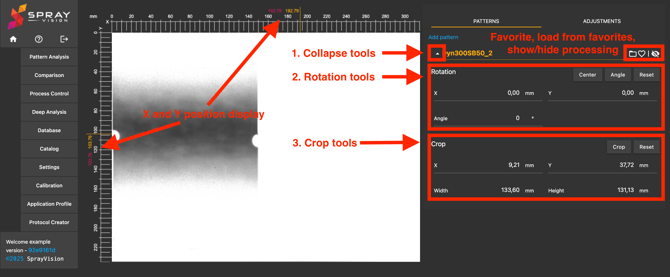
Collapse Tool
Allows you to show or hide the Pattern Editor tool panel to keep the workspace organized.
-
Rotation Tools
Enable rotation of the image based on a selected center point and a defined rotation angle.
-
Crop Tools
Allow you to crop the image by specifying the X and Y position along with the desired width and height.
-
X and Y Position Indicator
Displays the current position of the mouse cursor over the image, helping with precise alignment and orientation.
-
Favorites / Load from Favorites
Same functionality as in the previous version – save your settings and load them later for repeated use.
-
Show / Hide Processing Tools
Lets you toggle the visibility of cropping and rotation overlays directly on the image.
3. Description of the "ADJUSTMENTS TAB" Layout
-
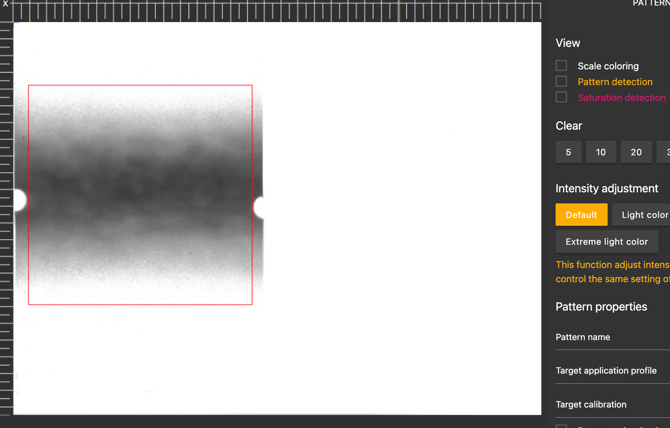
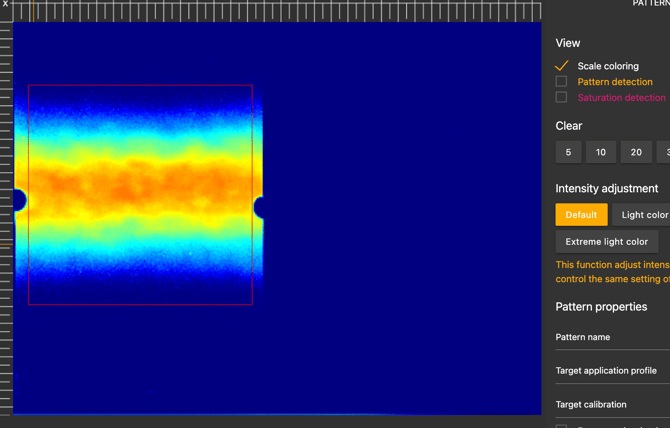
Scale Coloring
Displays the pattern using the heat-map coloring (from blue to red), making it easier to visualize intensity or coverage distribution.
-
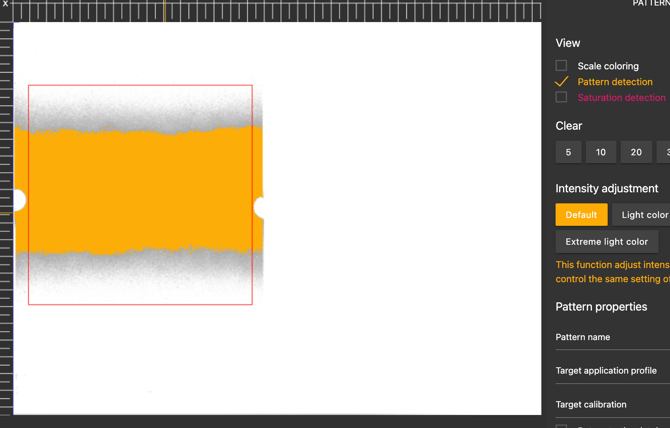
Pattern Detection
Highlights the area where the pattern is detected based on a basic threshold. This defines the automatic calculation of width, height, and overall area values. Highlighted with orange color.
-
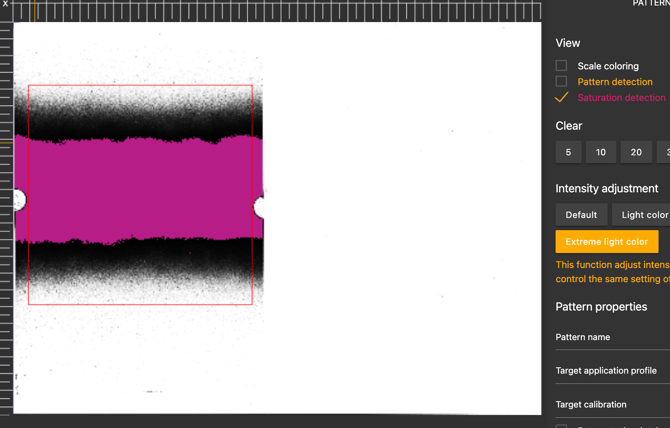
Saturation Detection
Highlights areas where full saturation is reached (intensity 1.000 – full black).
In these regions, no further thickness can be detected, as the sensor has reached its maximum measurement limit. Saturated areas are highlighted in purple for clear visibility.
-
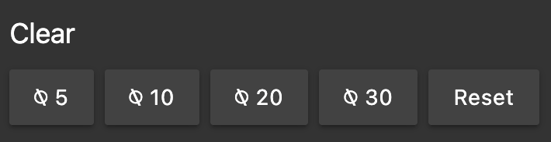
Clear Tool
Allows you to remove unwanted parts of the image, such as artifacts or noise on the foil. You can adjust the brush diameter from 5 mm to 30 mm for precise control. Erased areas are highlighted in grey. Use the Clear button to restore all erased regions.
-
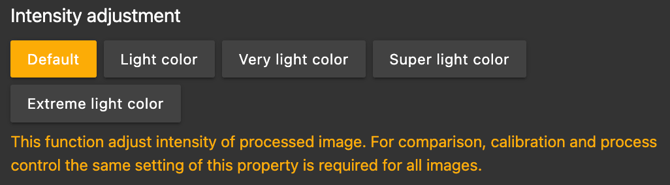
Intensity Adjustment
This tool allows you to adjust the visual appearance of the image to make it darker, which can help improve contour detection during process control. It is especially useful for colors with low hiding power or for dynamic patterns with minimal material application.
You can choose from the following visual modes:
• Default
• Light Color
• Very Light Color
• Super Light Color
• Extreme Light Color
ℹ️ NOTE – Changing the visual intensity does not affect the calibration results.
It only alters the display for better visibility and orientation.
-
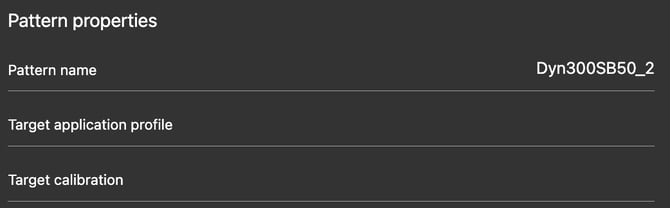
Pattern Properties
• Pattern Name
Allows you to rename the final pattern before saving.
• Target Application Profile
Lets you select the application profile that will be assigned to the saved pattern.
• Target Calibration
Enables you to choose the calibration settings that will be applied to the saved pattern.
-
Save Area
• Redirect to Database
Enables automatic redirection to the database after saving the file. This can be activated by checking the corresponding checkbox.
• Automatic Processing
Processes the pattern automatically using the same logic as during capturing. Cropping, rotation, and pattern definition are applied without manual input.
• Save
Saves the final result with the selected settings.

4. How to Work with Multiple Patterns
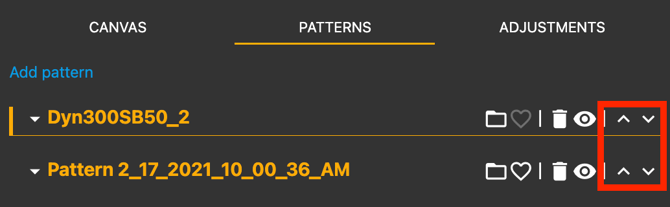
All opened patterns function as individual layers. You can control their stacking order by positioning them over one another on the right side of the pattern list.
-
The top-most pattern in the list will appear in front
-
The bottom-most pattern will be placed behind the others
⚠️ IMPORTANT – To obtain reliable results when merging multiple patterns, ensure that all patterns have the same type (e.g., Dynamic, Static Gun, Static Bell, etc.).
It’s also important to merge mainly patterns that use the same paint type (calibration) to avoid inconsistent or misleading outcomes.
Additionally, the selected light source (Basecoat, Infrared, Clearcoat) and its intensity (from Initial up to HDR) should be the same across all patterns.
Adding New Pattern
Click the blue “Add Pattern” button at the top of the pattern list to create a new entry.

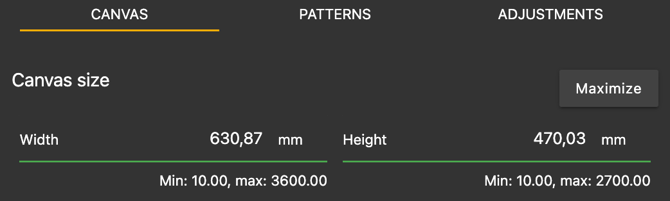
When adding a new pattern, a new “Canvas” tab becomes available. Here, you can define the dimensions of the canvas where all opened patterns will be placed.
The maximum canvas size can be set up to 3600 x 2700 mm.
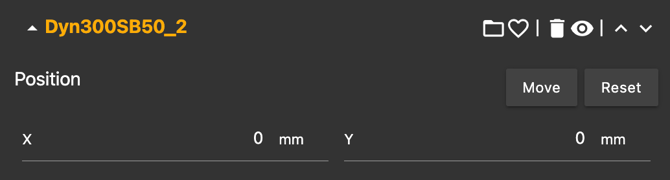
When multiple patterns are uploaded, a positioning tool appears for each pattern.
This allows you to adjust the placement of individual patterns on the canvas.
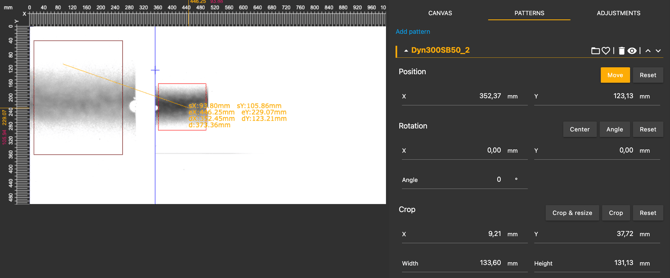
-
Crop and Resize Tool
Crops the selected area based on your input and simultaneously adjusts the canvas size to match the selection box.
-
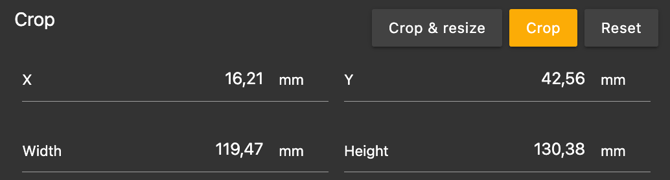
Crop Tool
Crops only the selected area of the active pattern (layer) without affecting the canvas size or other layers.
-
Layer order selection
Use the arrows on the right side next to the image name and tools to reorder the layers. This allows you to control the stacking of images on the canvas, helping you position patterns precisely in the desired layer order.
Saving the Result of Multiple Pattern Editing
Once all patterns are positioned and edited on the canvas, you can save the combined result as a single output. This includes all applied transformations such as cropping, rotation, layering, and positioning. The saved result reflects the final layout shown on the canvas.
As shown in the screenshot below, the “Adjustments” tab displays additional options when multiple patterns are selected. These options allow you to apply adjustments to all selected patterns.
Merging strategy
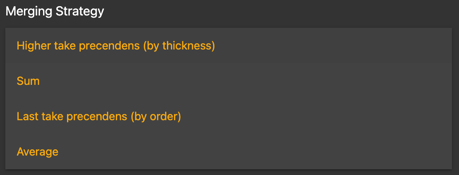
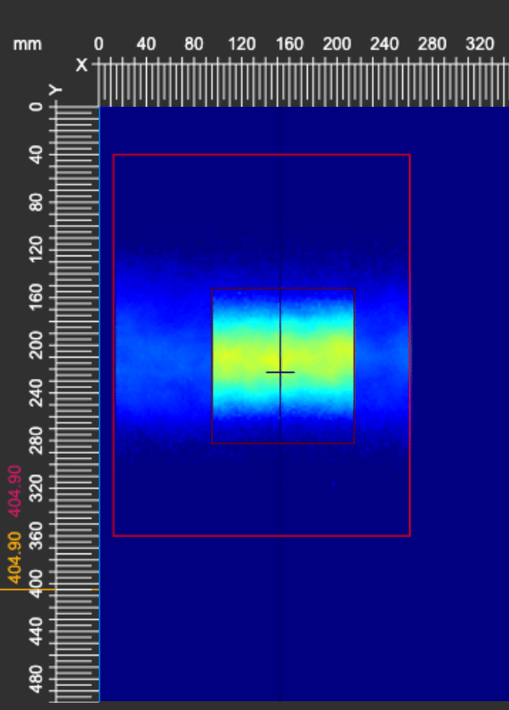
The image canvas contains two patterns, with the smaller one placed on the top layer (foreground).
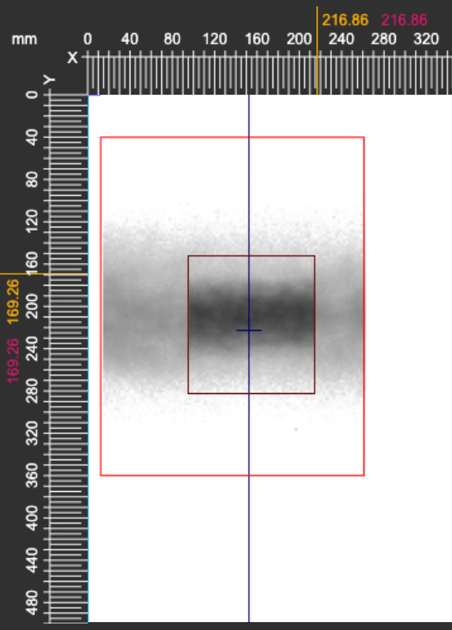
1. Higher takes precedence (by thickness)
In overlapping areas, the part with the higher thickness value (e.g., higher measured intensity) will be kept. This strategy prioritizes the stronger (thicker) pattern in the overlap.
Use case: To obtain information about the highest layer based on multiple inputs
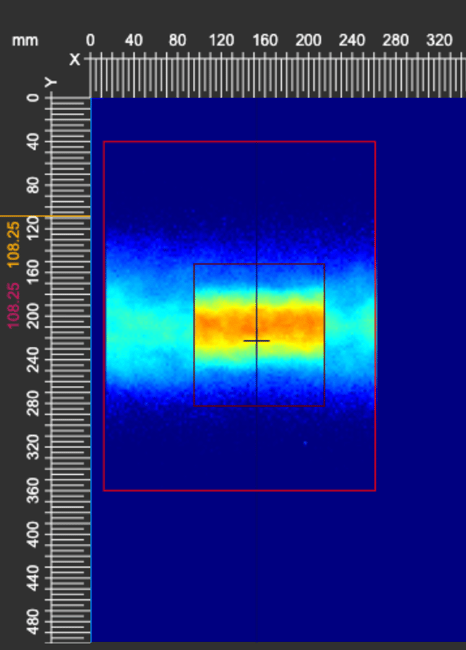
2. Sum
The thickness values of all overlapping patterns are added together. This strategy is useful when you want to see the total applied layer from multiple passes or applications.
Use case: To obtain information about pattern overlap
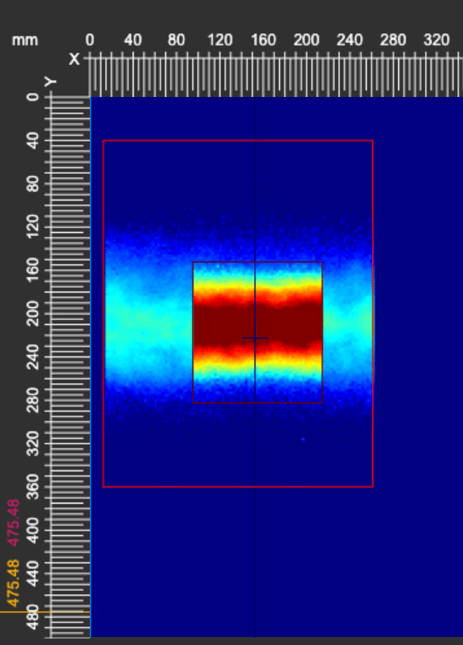
3. Last takes precedence (by order)
In case of overlap, the last pattern in the order (e.g., the one at the top of the layer list) will be shown. Previous data in the overlapping area will be overwritten.
Use case: Merging results from multiple foil cut-outs or Kapton tapes.
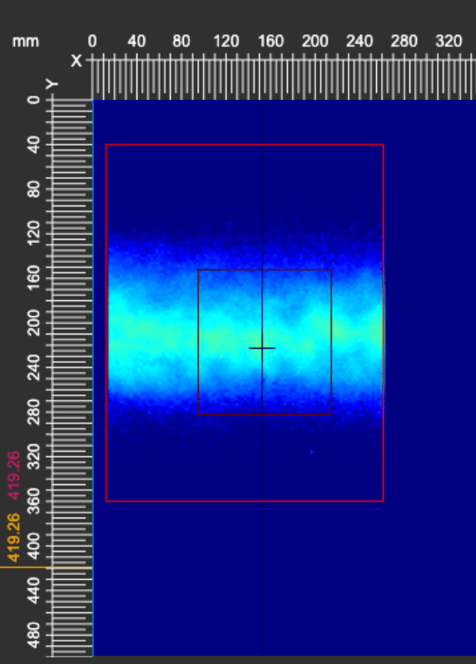
4. Average
In overlapping areas, the average thickness value of the patterns is calculated. This is useful for smoothing the output or balancing small differences between similar patterns.
Use case: Averaging the golden standard for process control Create an average from multiple pattern outputs to obtain a representative golden standard.
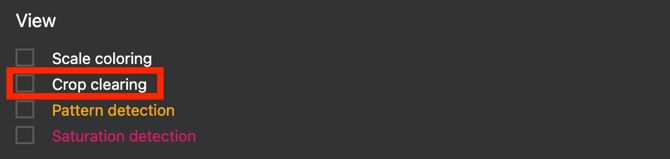
View – Crop clearing
This option lets you view the resulting cropped area on the canvas according to the defined crop selections.
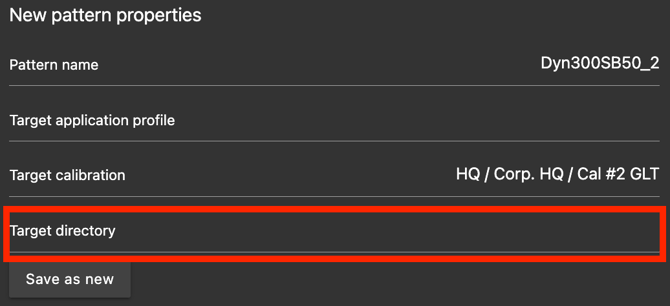
New pattern properties – Target directory
Because a pattern created from multiple patterns is always saved as a new one, you can choose the target directory for saving the result.
We trust that this article has provided you with valuable guidance and clarity regarding the use of the updated Pattern Editor module.
Should you have any additional questions, require further assistance, or encounter any issues, please do not hesitate to contact our support team at helpdesk@sprayvision.com. We are always here to support you and ensure you get the most out of your SprayVision experience.