
Why use the Application Profiles?
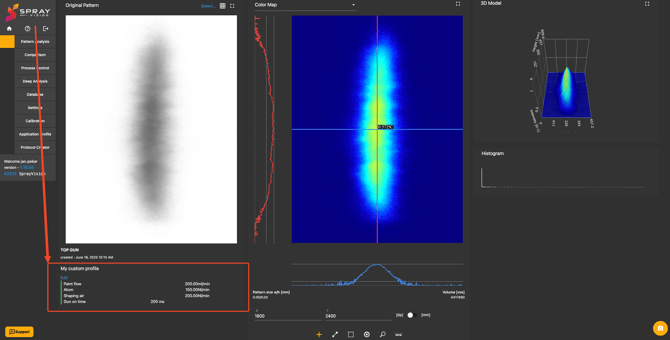
When capturing an image, it is often helpful to store contextual process data – such as applicator settings, material properties, or other production parameters – along with the image.
This allows for traceability and consistency across the entire project.
Once values are assigned during image capturing or from the database, they become available throughout the application.
An example of a single view
🔎 Quick Navigation
Application Profile Module Overview
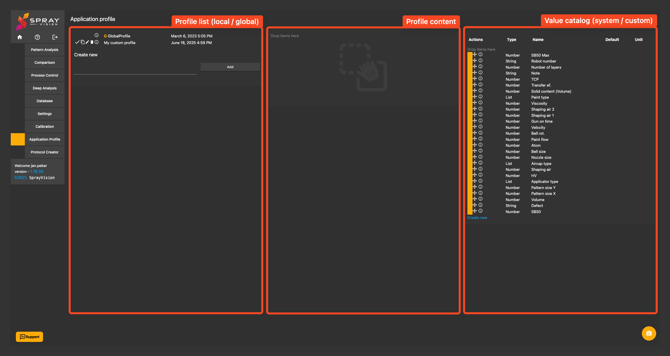
1. Profile List
- The left panel displays a list of existing application profiles.
- Each profile can be (if you have sufficient permissions): created, edited, deleted, duplicated.
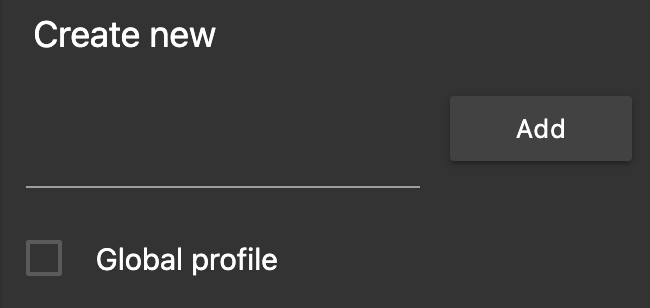
- At the bottom of this panel, you can create a new profile by entering its name and clicking “Add”. A pop-up window will appear where you must assign the department in which the profile will be used.

- If you have sufficient permissions, you can mark the profile as Global. In that case, an orange G will be displayed next to the profile name, and the profile will be visible and available for use across the entire company.
2. Profile Content
- When a profile is selected from the left list (open by clicking the checkmark),
its contents are displayed in the center panel. - To add values, drag and drop items from the right list.
- To edit the custom value of an item, you must first move it back to the value catalog on the right side, edit it and then drag it back into the profile content (center list).
3. Value Catalog
The right panel contains a catalog of available values that can be assigned to your current profile list.
- To assign a value, grab it from any part of the row and drag it into the center panel.
- Once dropped, it becomes part of the profile.
- Modify it using the pencil icon.
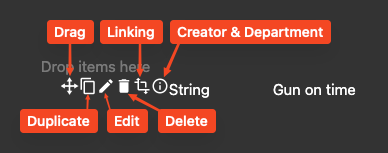
- System-defined values are highlighted by an orange rectangle.
- At the bottom of the panel, you can create a custom value by clicking the "Create new" button.
4. Creating a Custom Value
Clicking the "Create new" button opens a popup window where you can define the value type and its properties:
- Number – for numeric input (e.g., pressure, speed)
- String – for text input (e.g., batch ID, operator name)
- List – for drop-down selections (e.g., material type, shift)
Once created, the custom value appears in the catalog and can be added to any profile as needed.
5. Usage
You can assign application profile via multiple ways:
 Directly when capturing via the capturing menu, after capturing you can fill in the parameters.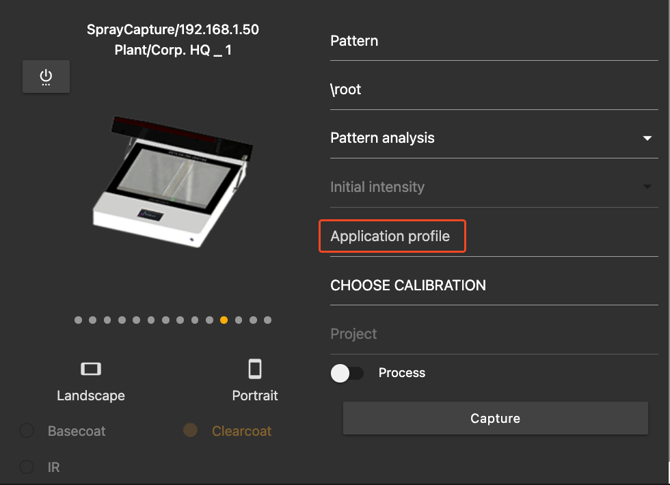
- When browsing the database via the right-side file menu.
- Then you can see the data in Process Control, Pattern Analysis, Transfer Efficiency, Comparison, Database, and other modules.