
In previous versions of the software, if you wanted to apply the same pattern edits
(such as intensity adjustment, cropping, rotation, etc.), you had to do it manually for each pattern. The process involved editing the first pattern, selecting all the desired values, saving the pattern, and then saving the edit settings as a “Favorite”.
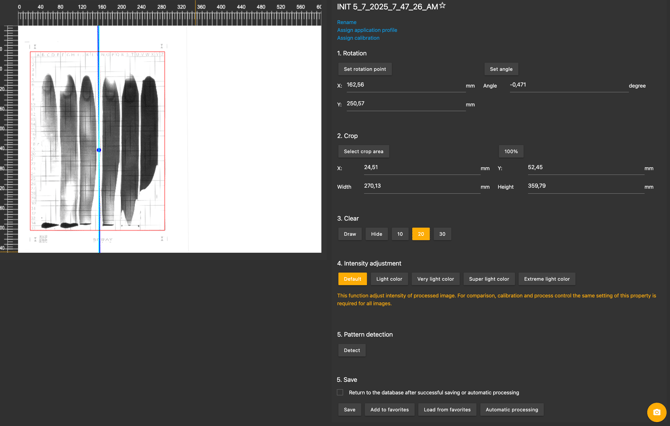
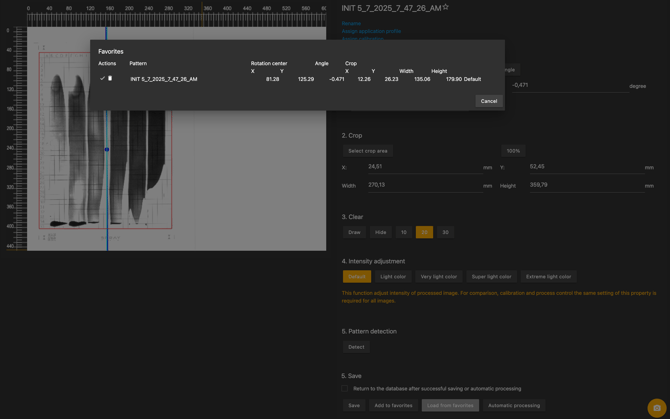
In the next step, you had to open each pattern individually in the editor and manually load the saved “Favorite” settings to apply the same adjustments (crop, rotation, etc.).

Below information contain guide on the updated options for batch processing.
The most common use cases for batch processing include:
- Preparing dynamic pattern outputs so that SB50 and transferred volume results can be compared correctly in the 2D comparison.
- Adjusting static patterns to ensure correct rotation for accurate comparison in the 2D view.
- Editing calibration foil results when different light intensities were used during capturing. This variation can cause missing grid information, requiring manual cropping of overexposed areas based on the result of the first pattern captured with the correct intensity.
How to perform batch processing for multiple patterns
- Apply the desired changes to the first pattern (cropping, rotation, etc.) and save the pattern.
(This step was also required in earlier versions of SprayCapture.) - Optionally, save these settings to Favorites.
(This step was also required in earlier versions of SprayCapture.)
old pattern editor – saving Favorites
new pattern editor – saving Favorites 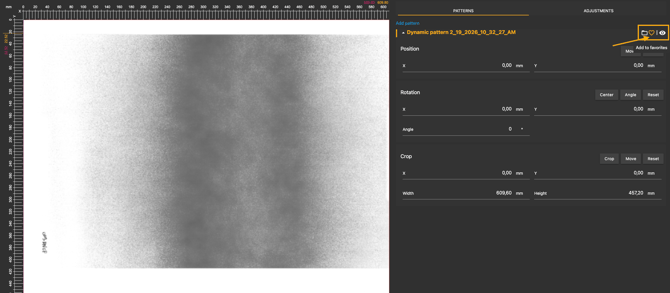
-
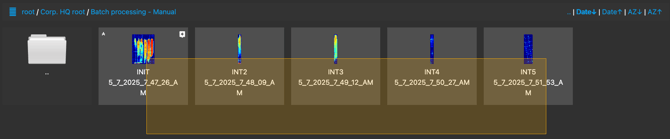
Go to the database and use multi-selection to choose the patterns you want to process in batch mode. You can do this by dragging a selection box over the patterns or by holding the Ctrl key and clicking on individual images.
-
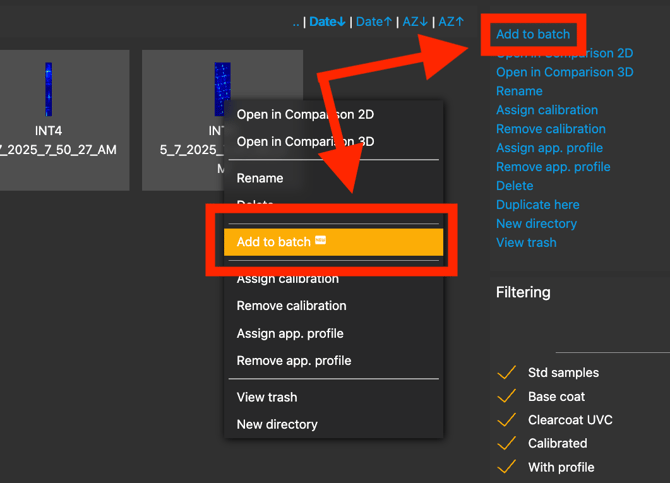
The batch processing option will appear in the right-hand menu, and it will also be available by right-clicking on the selected images to open the context menu.
-
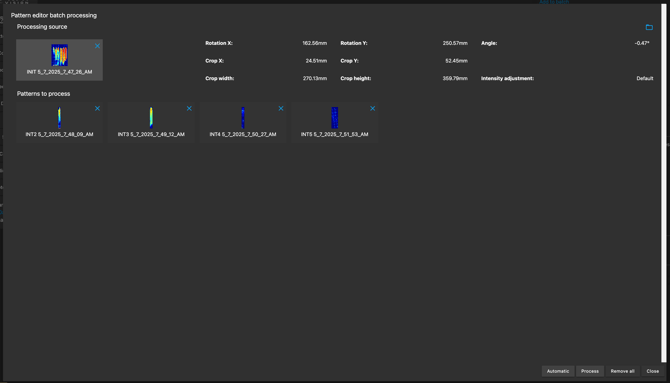
After opening the batch processing window, select the pattern you want to use as the source for processing (i.e. the one from which cropping, rotation, and other values will be applied). Simply click on the desired pattern to set it as the source.
-
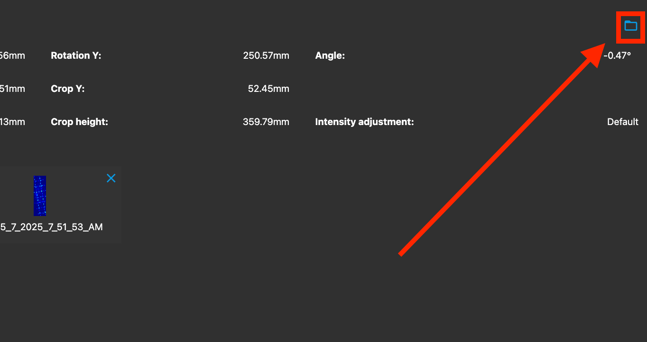
You also have the option to use your saved “Favorites” settings by clicking the folder icon in the top-right corner of the batch processing window.
-
The option selection
- Automatic – Applies automatic processing (the same as used during capturing) to all selected patterns. This includes automatic cropping, rotation, and pattern type detection.
- Process – Applies processing based on the selected source pattern or the settings loaded from Favorites.
- Remove all – Removes all patterns from the batch processing list.
- Close – Closes the batch processing window.

- After selecting either the Automatic or Process option, the batch processing will be executed and the results saved to the database. All processed patterns will be marked with the status “Modified in editor” and will reflect the adjustments from the selected source pattern or the loaded Favorite settings.

We trust that this article has provided you with valuable guidance and clarity regarding the use of the new Batch processing function.
Should you have any additional questions, require further assistance, or encounter any issues, please do not hesitate to contact our support team at helpdesk@sprayvision.com. We are always here to support you and ensure you get the most out of your SprayVision experience.